


01
Use a trend
Preview a GTA 6 AI scene and select it to load the reference and photo roles.
Fan-inspired GTA videos
Choose a GTA 6 AI scene, add your photo, or create a video from your own idea.
Create freelyCreations from this workspace appear here.
Find your next video idea. Choose a ready-made trend and make it your own.
Put yourself in a GTA-inspired scene. Choose a GTA 6 AI template, preview the action and add your photo. To make your own scene, start with a prompt, image or video reference.
Illustrated settings are examples; available controls depend on the selected model.
Step 1
Browse the wall and preview a scene. Load its prepared reference and roles into the GTA 6 AI video generator, or select a compatible model for free creation. Browsing and selecting a template do not submit a generation.
Step 2
Add a clear photo for each required role; some scenes also accept an optional car image. Check the mode, duration and GTA 6 AI estimate. If you switch templates, read the confirmation about inputs that may be replaced.
Step 3
Sign in, submit and follow the GTA 6 AI task in My creations. Check faces, hands, scene changes and sound throughout the clip, then download it from the account used to create it.
Start a GTA 6 AI scene from a prepared reference or a custom idea.
01
Preview a GTA 6 AI scene and select it to load the reference and photo roles.
02
In the GTA 6 AI workspace, select a model for your written idea, image or reference clip.
03
Check the face, hands and movement in your GTA 6 AI result. If a limb looks unclear, try a wider photo or cleaner reference.
Watch two takes on each farewell. The highway follows a convoy through the hills, while the airport brings the traveler face to face with the people seeing them off.
Highway farewell to Vice City
01
Side windows and the rearview mirror give this GTA 6 AI road trip several ways to show who is traveling together.
02
Watch the same stretch of highway from the driver’s seat and from above. The change in viewpoint reveals the cars traveling in formation.
03
In the airport scene, the traveler meets the group at the gate. Compare the two clips at the handshake to see how the traveler changes.
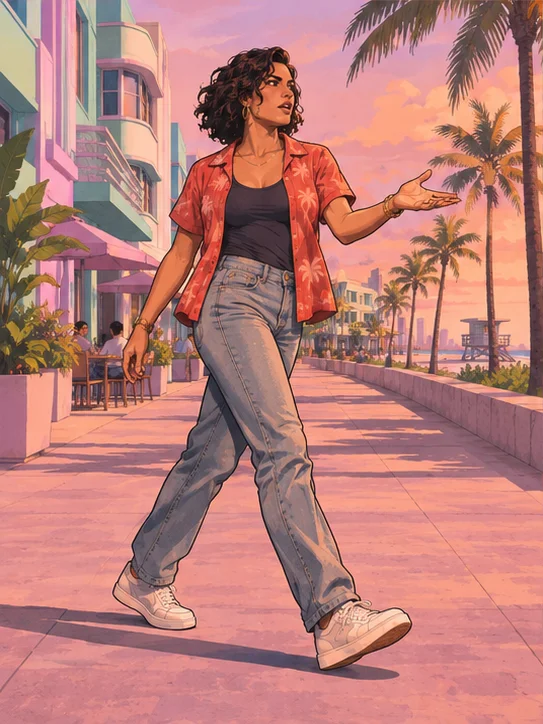
Choose a clear photo and a readable clip; the illustrations show useful framing.
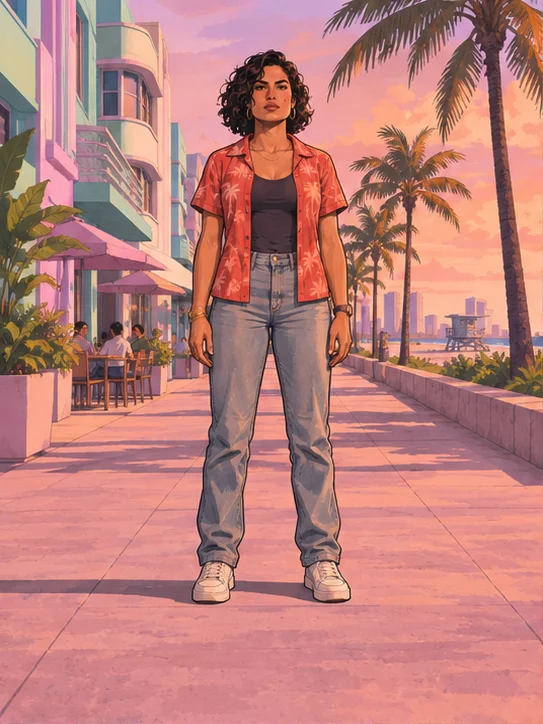
For a full-body scene, show the face, hands and feet with room around the subject.
Recommended
Avoid

For a custom reference, choose a subject whose moving limbs stay visible.
Recommended
Avoid
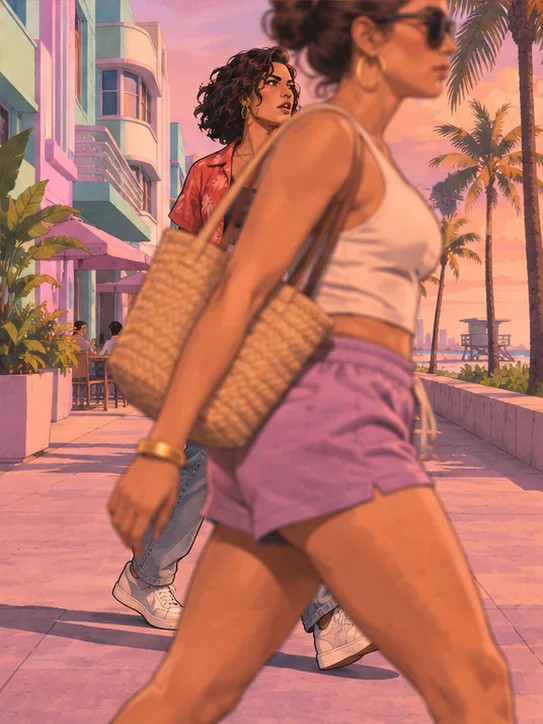
Watch custom reference footage from start to finish and trim unrelated material.
One credit balance for images, videos and motion transfer.
For your first ideas.
$218.9 charged yearly
10,080 credits/year
Up to 1,680 images
Up to 560 videos
For a steady creative flow.
$410.9 charged yearly
21,600 credits/year
Up to 3,600 images
Up to 1,200 videos
For more creations, more often.
$593.4 charged yearly
43,800 credits/year
Up to 7,300 images
Up to 2,433 videos
Try before you subscribe
Prices in USD; taxes and total shown at checkout. Subscriptions renew automatically; cancel in Billing settings. Subscription credits expire each period; one-time credits never expire.
Refunds: request within 72 hours. Used purchased credits and applicable non-refundable processing costs (up to 6%) are deducted. Terms · Refund Policy
A practical guide to references, settings, credits and results.
The GTA 6 AI video generator creates fan-inspired videos from prepared scenes or supported custom inputs. A template supplies the reference and photo roles. Your image guides a subject while the model interprets the scene; results can differ from the preview.
No. GTA6 AI Video is an independent service and is not affiliated with or endorsed by Rockstar Games or the owners of Grand Theft Auto. The GTA 6 AI video generator creates fan-inspired visual material; it is not an official game, release, game editor or access to unreleased gameplay.
The GTA 6 AI collection includes Goodbye GTA 5, two airport farewells, a thirteen-year reunion, car washing, an apocalypse reaction, a police chase and a living-room prank. Each GTA 6 AI preview shows its sequence; open the matching page for role details.
GTA 6 AI photo roles vary by template. Some scenes offer one traveler, player or rider role; companions remain part of the reference. The car wash adds an optional vehicle image. Check the labels to see which subjects can be personalized.
Last Flight personalizes the traveler and appends the original takeoff. GTA 6 AI modes use different prepared lengths but share that ending. Review the selected preview and estimate, then inspect the transition into the closing footage.
No. That GTA 6 AI scene needs one current portrait. The service prepares an imagined childhood reference to use with the adult photo. The younger face is an interpretation, not a reconstruction of actual childhood. Check both ages and the year labels in the GTA 6 AI result.
Yes. Exit the template and select a GTA 6 AI model for free creation. Depending on its available modes, start with text, a still or reference media. The GTA 6 AI workspace shows the input requirements and estimate before submission.
The GTA 6 AI credit estimate depends on the model and settings. The thirteen-year scene also prepares a younger portrait. Review the estimate and balance in the GTA 6 AI workspace; the pricing page describes the available plans and purchase status.
Audio for GTA 6 AI varies by model and template. Some scenes attempt to restore reference sound, which can fail; other models have their own sound settings. Listen to the complete GTA 6 AI result and check audio rights before sharing.
Open My creations or your account history. The GTA 6 AI preview shows the prepared scene; your result appears after submission. Sign in with the same account to review or download your GTA 6 AI video.
Play the full GTA 6 AI video and listen to its soundtrack. Check hands, props, vehicles and text. Obtain permission for photos, reference footage and audio, and review applicable terms; the GTA 6 AI workspace cannot verify your rights for you.
Choose a GTA 6 AI scene, add your photo, or create a video from your own idea.